Knowing what goes into the food we eat is increasingly important, and more people are paying attention to nutrition than ever. As a food blogger, including accurate nutrition facts with my recipes has become essential. My go-to tool: MyFitnessPal. Below is a clear, practical guide to using MyFitnessPal for both personal tracking and for bloggers who want to publish searchable recipe nutrition. Learn what the app does, how to log foods and recipes, how to edit ingredients and servings, and other useful features.
What is MyFitnessPal for?
MyFitnessPal For Everyday Users
MyFitnessPal (MFP) is an app and web service for tracking daily food intake and nutrition. Whether you want to monitor a specific nutrient, watch sodium, or count macros, MFP simplifies the process by providing a large searchable database of foods, branded products, and restaurant items. Among tracking tools I’ve tried, MFP stands out for ease of use and the depth of its database, which makes everyday logging faster and more accurate.
I first discovered MFP through macro counting in a challenge, and it changed how I approach food. Tracking macros helped me learn how to fuel my body and removed much of the guesswork from meal planning.
What are macros?
Macronutrients, or “macros,” are the main nutritional components of food: carbohydrates, fat, and protein. Eating these in a particular ratio can support specific fitness or health goals. Ideal macro ratios vary for each person depending on factors like age, sex, and activity level. I’m not a nutrition professional, so I don’t provide personalized macro recommendations—consult a registered dietitian or coach for individualized guidance. Note: macro targets should be tailored to your body by a qualified professional.
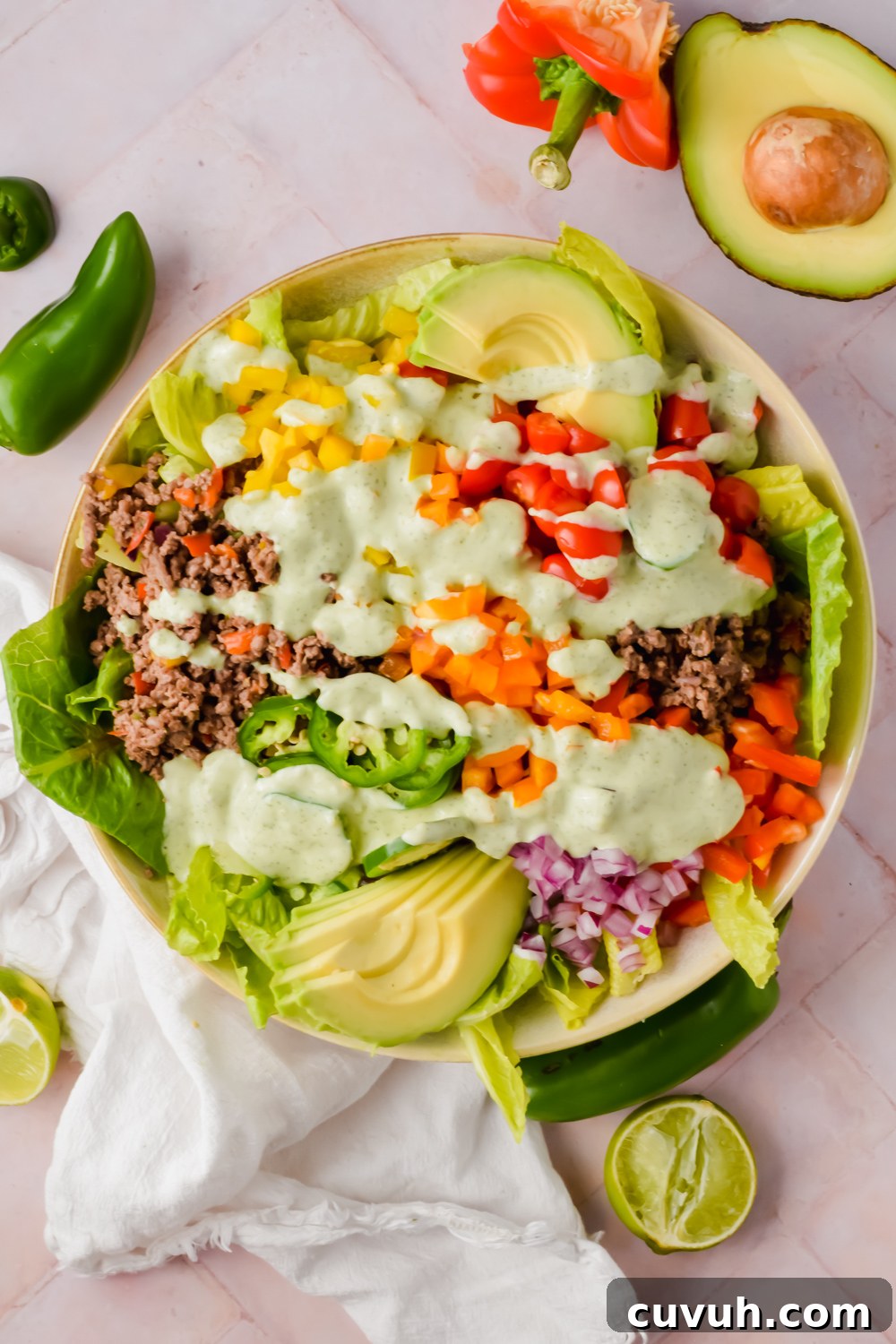
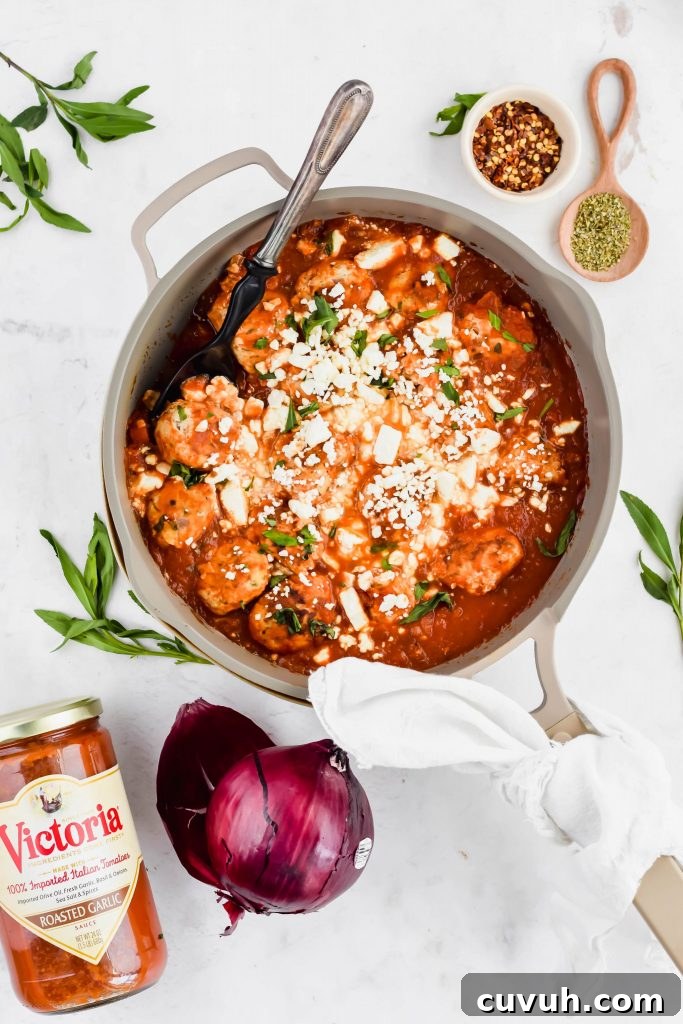
I do, however, develop many macro-friendly recipes—meals that are typically higher in protein, lower in fat, and moderate in carbs. They can still be delicious. A few examples from my site are listed below.
- Zesty Turkey Meatballs
- Macro Friendly Cheesy Quesadilla
- Baked Feta Spaghetti Squash Casserole
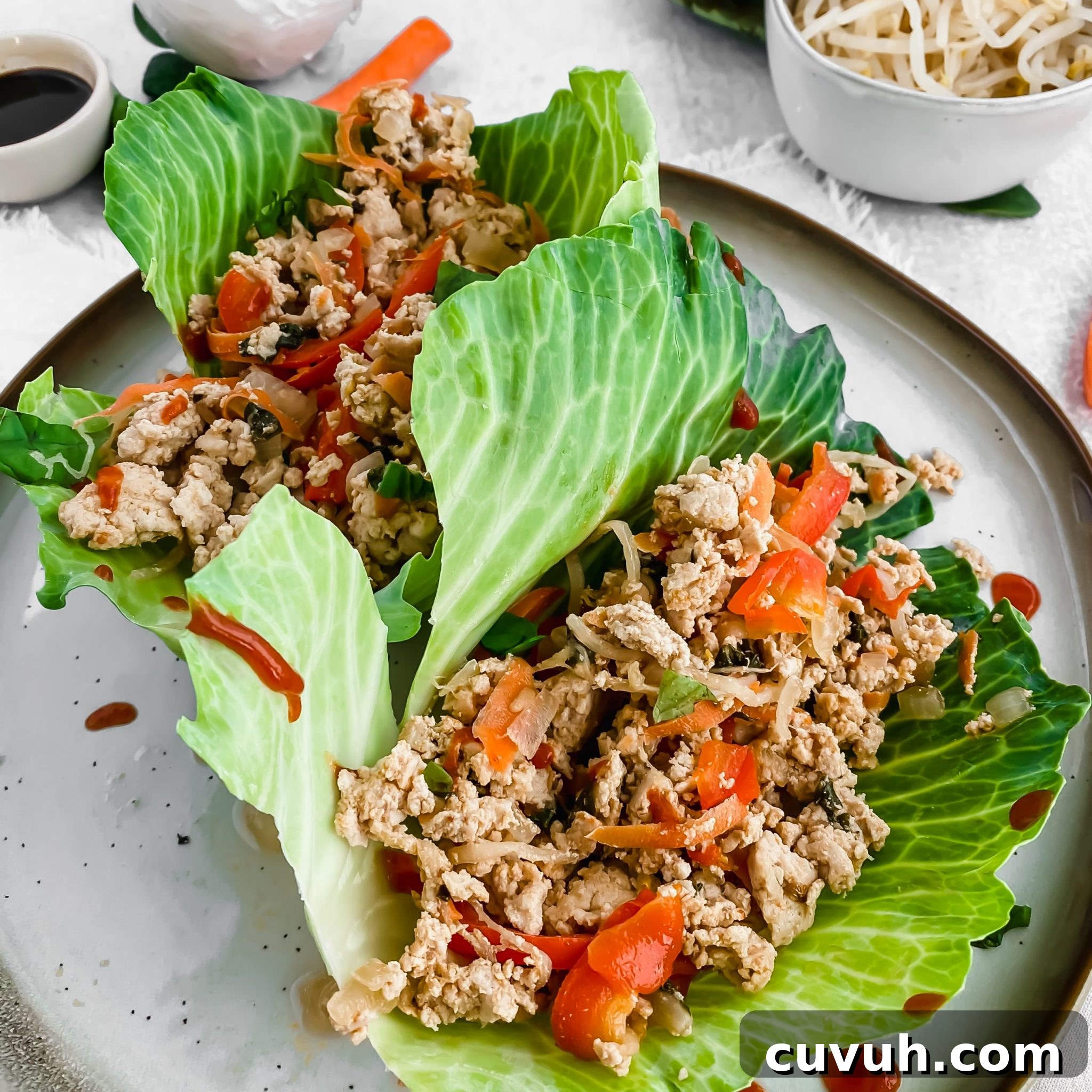
- Thai Chicken Lettuce Wrap
- Key Lime Pie Milkshake
- Skinny Turkey Enchiladas
-
 Zesty Turkey Meatball
 -
Macro-friendly Cheese Quesadilla
-
Baked Feta Spaghetti Squash Casserole
-
Thai Chicken Lettuce Wrap
-
Key Lime Pie Milkshake



MyFitnessPal for Bloggers
One of the most common reader requests on recipe blogs is a nutrition label. My solution is MyFitnessPal. I previously used other tools to generate nutrition labels but ran into problems: limited food databases, inaccurate matches for specific brands or low-fat products, and display issues when embedding labels in posts. MFP’s vast database and barcode scanning make it a more accurate and reliable free option.
Switching to MFP required redoing nutrition labels for many recipes, so expect an upfront time investment if you have a large recipe archive. Still, for accuracy and ease—especially when matching branded ingredients—MFP is an excellent choice for bloggers who want to share nutrition and macro information with readers.
How to Find a Recipe in MyFitnessPal
If a recipe from my site is already in MFP, search “A Paige Of Positivity” plus the recipe name and it should appear. Many bloggers upload recipes to MFP; searching the blogger’s name often brings their public recipes into view.
Note: recipes uploaded to MFP use the ingredients as written in the post. Optional toppings or variations may not be included—check the recipe post for what was counted.

How to add a recipe to MyFitnessPal
Adding a recipe to MyFitnessPal for Personal Use
If a recipe isn’t already in MFP, or if you want to edit ingredients, you can add it using either the web or the app. I find the browser interface easier for detailed edits, but both work well.
Using the Browser:
- Log in and click the “Food” tab at the top.
- Click “Recipes.”
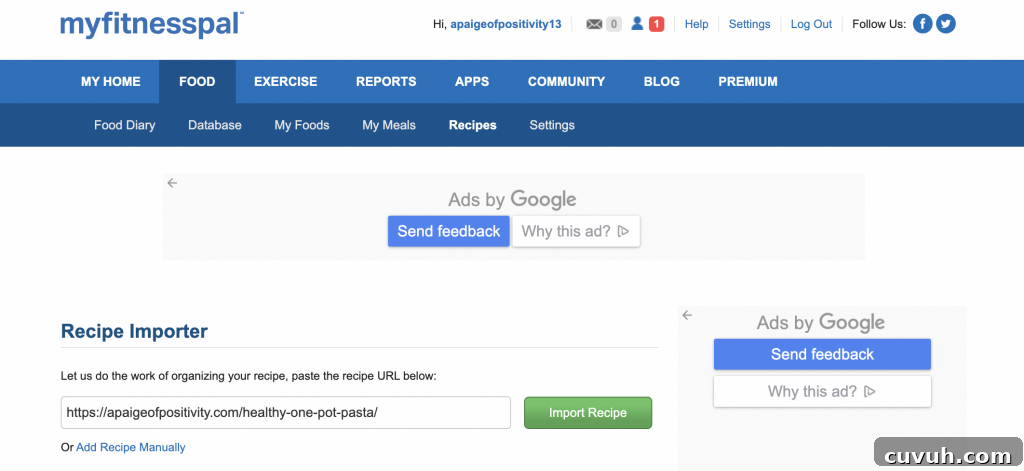
- Choose “Recipe Importer” to pull ingredients from a web link, or “Add Recipe Manually” to type ingredients yourself.
Using the Recipe Importer:
- Paste a recipe URL into the Recipe Importer. MFP will pull ingredient text from the page.
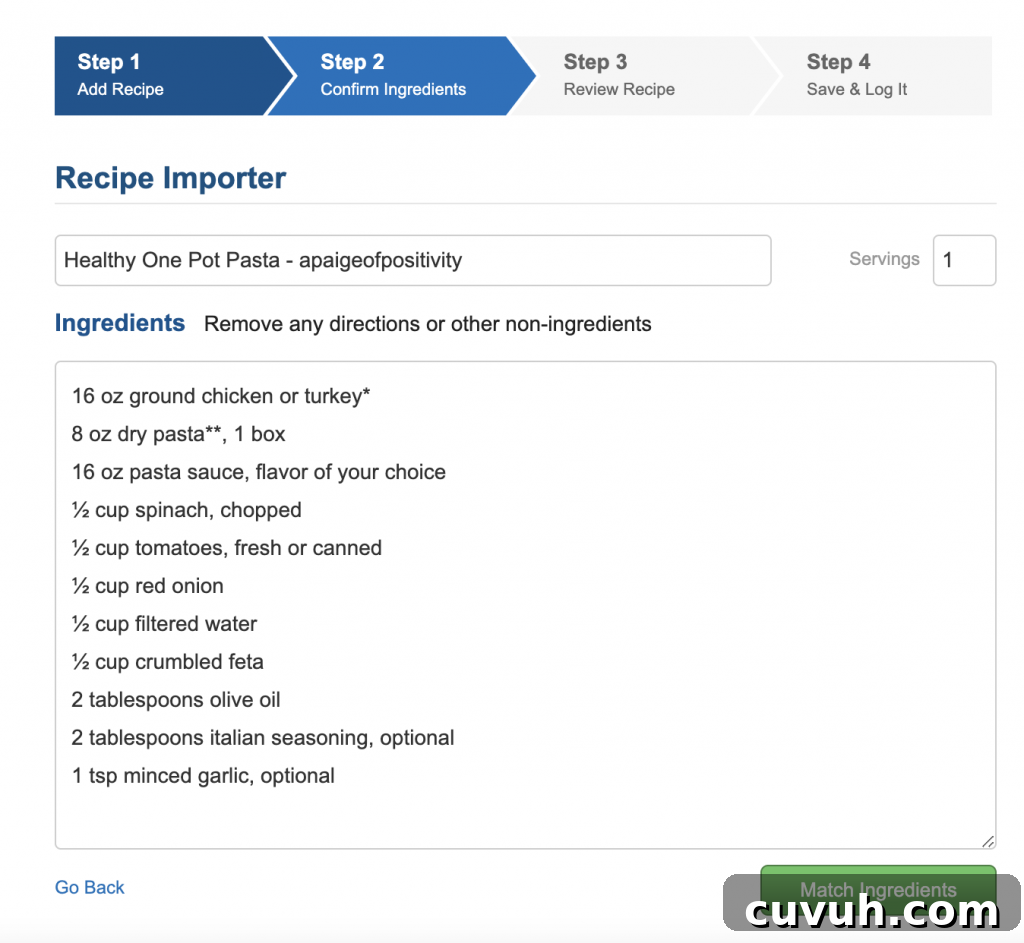
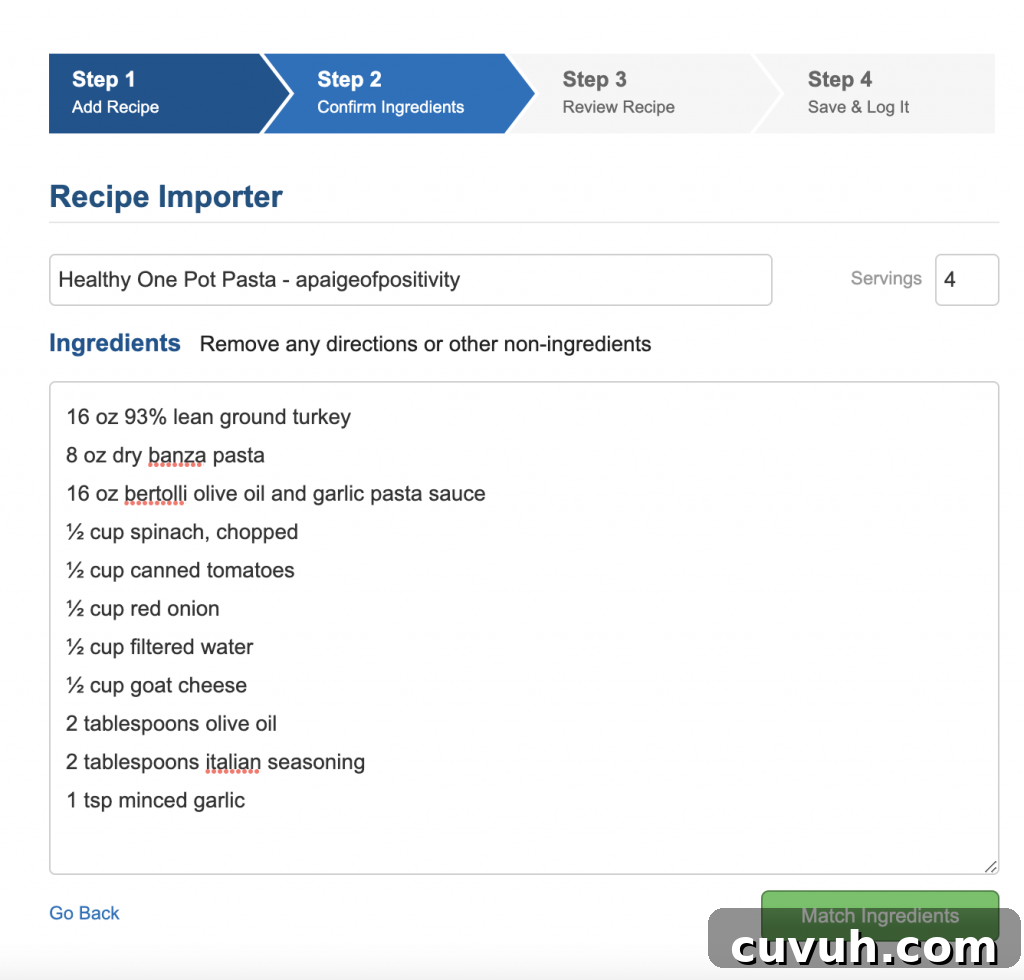
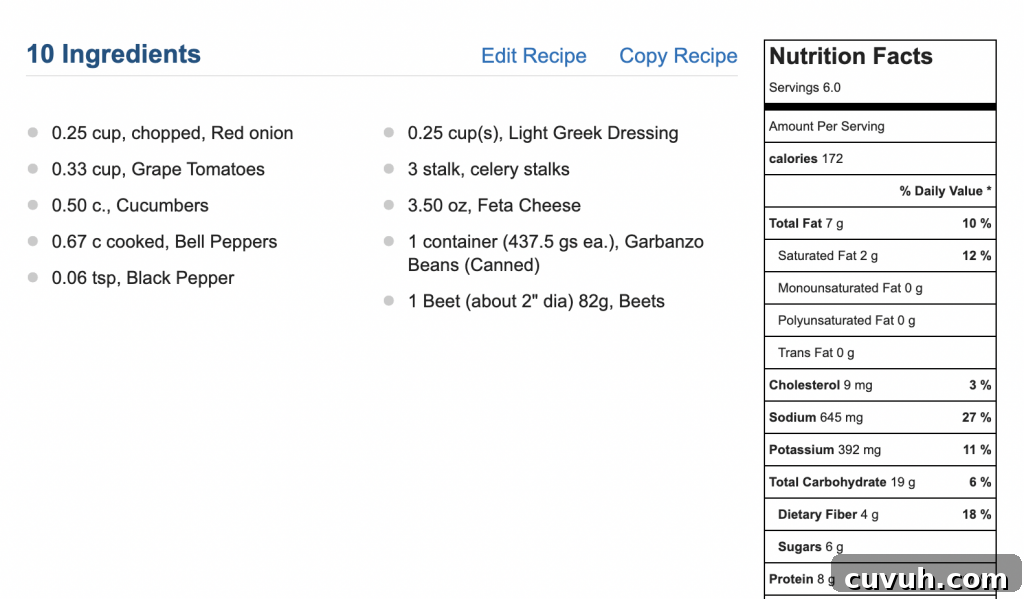
- Edit the ingredient lines to remove preparation notes (for example, remove “softened” from “½ cup butter, softened”) and correct the number of servings. Be as specific as possible—use milk type or brand names when relevant for better accuracy.
- If you want to swap ingredients, do it now. For example, replace feta with goat cheese if that’s what you use.
- Click “Match Ingredients” and confirm MFP matched the correct food items and quantities. The index isn’t perfect—double-check matches (especially cheeses and condiments) and use “Edit Quantity” or “Replace” to correct errors.
- Once everything looks right, save the recipe and it’s ready to log.
Adding your Recipe Manually:
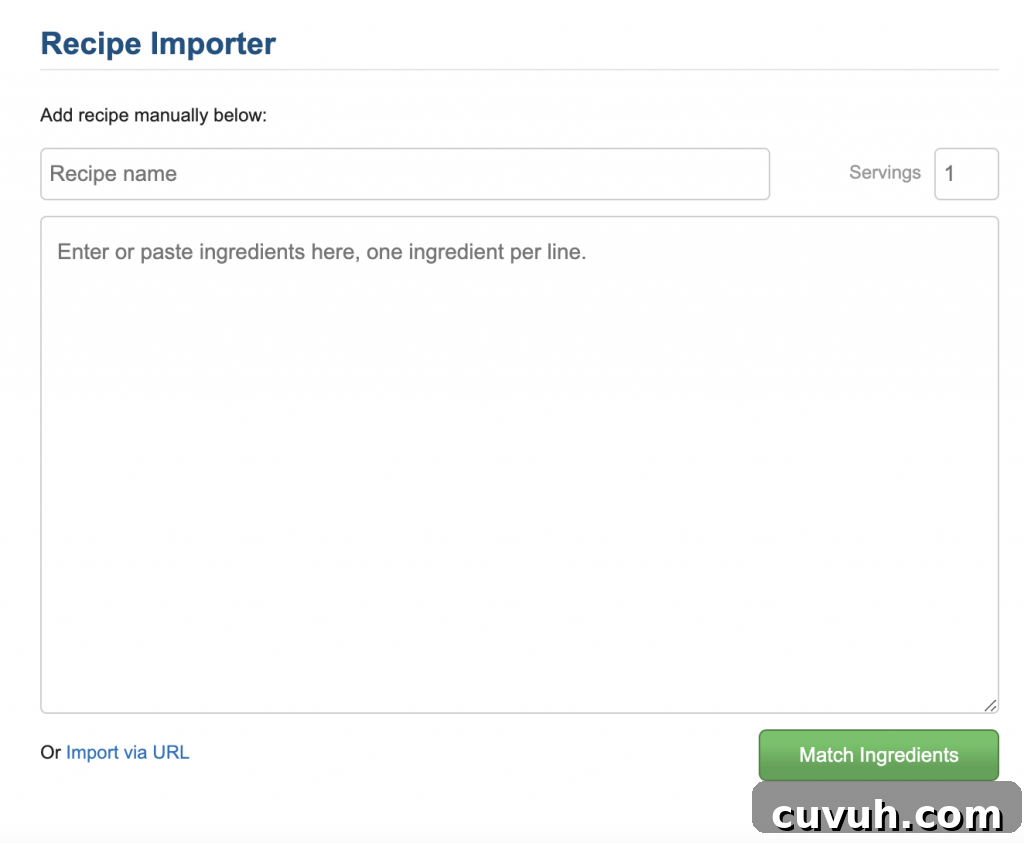
To add a recipe you typed yourself or copied from a non-web source, choose “Add Recipe Manually.” Enter each ingredient and quantity so MFP can match them to items in its database. Review matches, replace or edit quantities when needed, then save.
Using the App:
The app follows similar steps:
- Open the app and tap “More” in the bottom right.
- Choose “My Meals, Recipes & Foods.”
- Tap the blue banner “Create a Recipe” and follow the prompts to import from a URL or add ingredients manually.
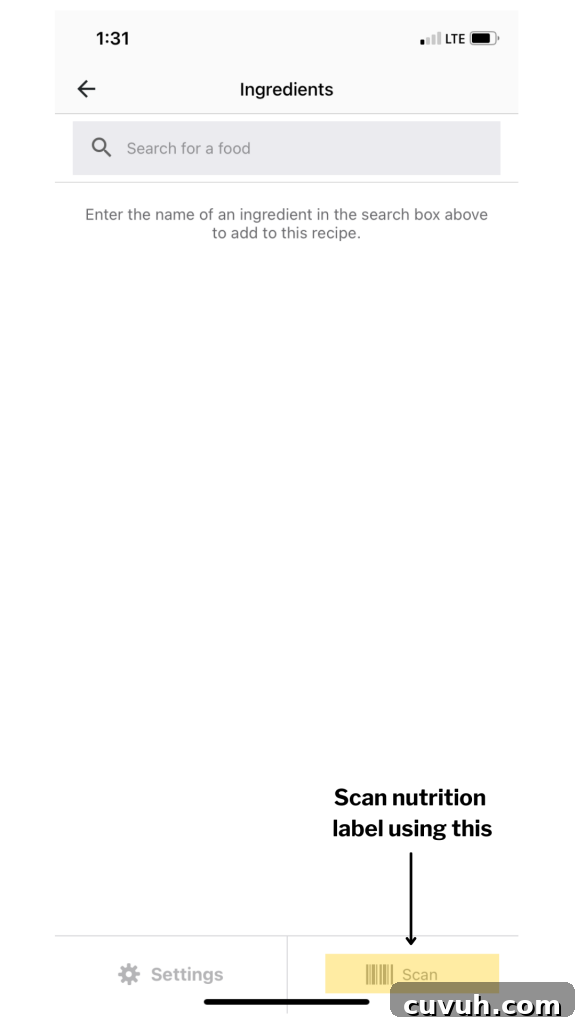
A helpful app feature is barcode scanning. When adding ingredients you can use the phone camera to scan the product barcode and pull exact nutrition facts for branded items—this speeds up uploads and improves accuracy.
Adding a recipe to MyFitnessPal for Bloggers
If you want your recipe to be searchable by others on MFP and to provide a nutrition label for your blog, follow these extra steps after importing and saving your recipe:
- If the recipe is live on your blog, use the Recipe Importer and paste the post URL. If the recipe isn’t live, add it manually.
- After saving the imported recipe, MFP generates a nutrition label. To make the recipe searchable, you need to create it as a public “Food.” Go to “My Foods” on the web and click “Create Food.”
- For Brand/Restaurant, use your blog name (for example, “A Paige of Positivity”) and use the recipe title as the Food Description—this helps users find your recipe instead of a generic product.
- Enter the nutrition values (you can copy them from the nutrition label MFP created during import). At the bottom, check the option to make the food public so other users can find and log it.
- Save the new food. Your recipe is now searchable and available for others to log in their diaries.
How to Determine Servings in MyFitnessPal
Serving definitions vary by recipe. I usually upload recipes as single servings, but what constitutes “one serving” depends on the recipe. For example, one serving of a bar recipe might be one bar if the recipe is cut into nine pieces, while another recipe might define a serving as one-sixth of the dish. Check the serving information on the recipe card, or log a fraction of the container when you serve yourself.
If you want precision, log servings by weight using a food scale. For example, weigh the entire prepared recipe container (in grams) and use that total as the number of servings in MFP. When you remove a portion, weigh the portion and log that number of grams as servings—this method yields accurate macro counts.

Logging by weight can seem unusual at first, but it provides precise macro tracking. For example: if your full container weighs 550 grams, set the recipe to 550 servings. When you eat 200 grams, log “200” servings. This method ensures your macro totals reflect the exact portion you consumed.
How to log a recipe in grams:
- Place the empty storage container on a food scale and zero it, then add the prepared recipe to get the total gram weight.
- Use that total gram value as the number of servings when importing the recipe into MFP.
- When serving, place the container back on the scale, remove the portion to eat, and use the gram amount you removed as your logged servings.
- Although this process takes a bit more effort, it gives more accurate macro tracking for those who need precision.
Other helpful MyFitnessPal Features
Here are a few additional MFP features that make tracking easier and more flexible.
Setting Macro Goals in the App
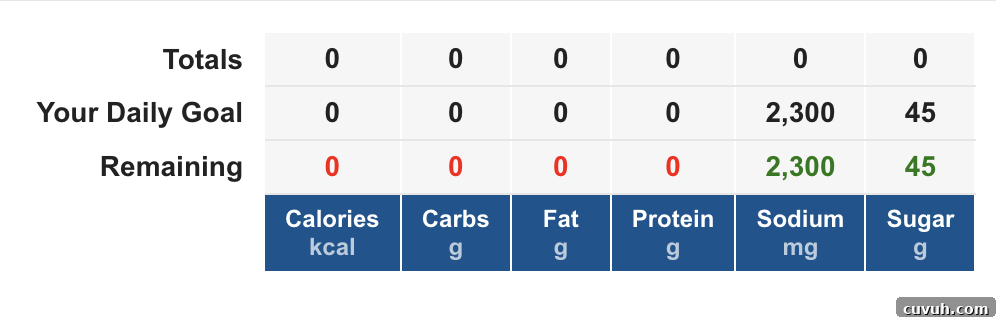
If you want to target specific macro ratios, you can set goals in MFP. Free users can set macro percentages (in 5% increments) and a calorie target that corresponds to those percentages; premium users can set exact gram targets. Steps:
- Open “Goals” from the My Home section (web) or the three dots menu (app).
- Edit your calorie goal to reflect the caloric equivalent of your macro targets (carbs 4 kcal/g, protein 4 kcal/g, fat 9 kcal/g).
- Adjust macro percentages to get as close as possible to your target ratios.
- Track your daily intake and view macro totals via the “Nutrition” button in the app or the nutrition summary in the web diary.
Using the My Meals Tab
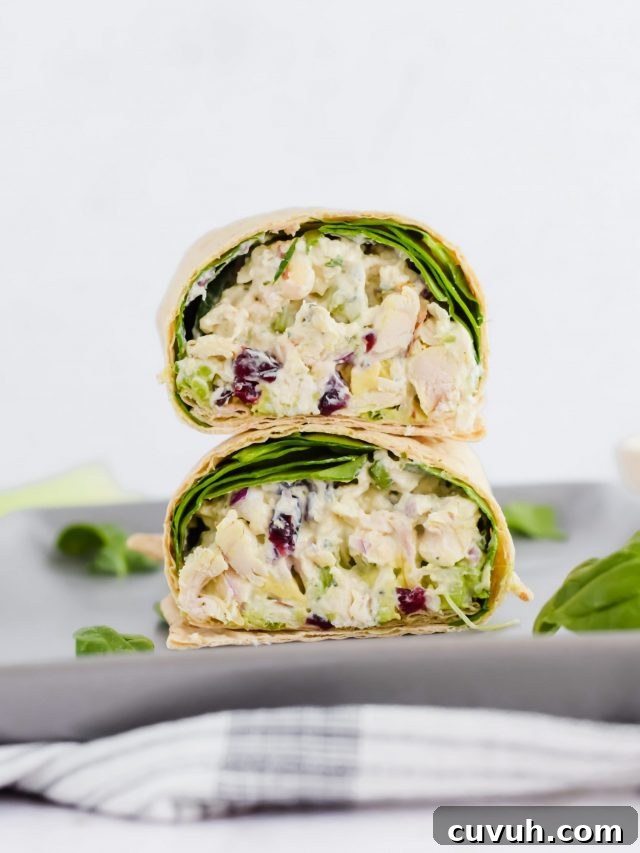
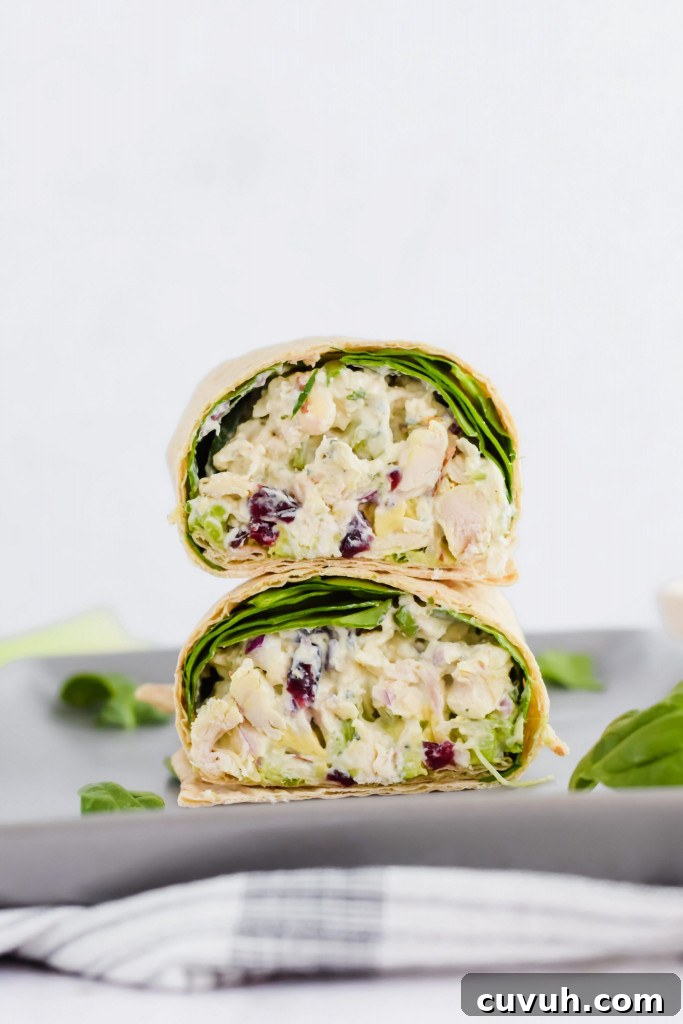
The “My Meals” feature lets you save common combinations of foods so you can log them at once. If your regular lunch is a chicken salad wrap, apple, and snack bar, create a meal with those items and log them together to save time.
That covers the essentials of using MyFitnessPal for personal tracking and for bloggers who want to publish accurate, searchable recipe nutrition. If you try these steps, you should be able to generate reliable nutrition labels and make your recipes easy for readers to find and log. Happy logging!